Time Tracker Support
Last Updated: September 22, 2026
App and Developer
App Name: Time Tracker
Developer: Light of Data Ltd
Contact:
support@lightofdata.earth
This page explains how to get help with Time Tracker and answers the most common questions. Menu and button names below are the English labels; the app shows them in the language you use it in.
How to Get Help
From inside the app
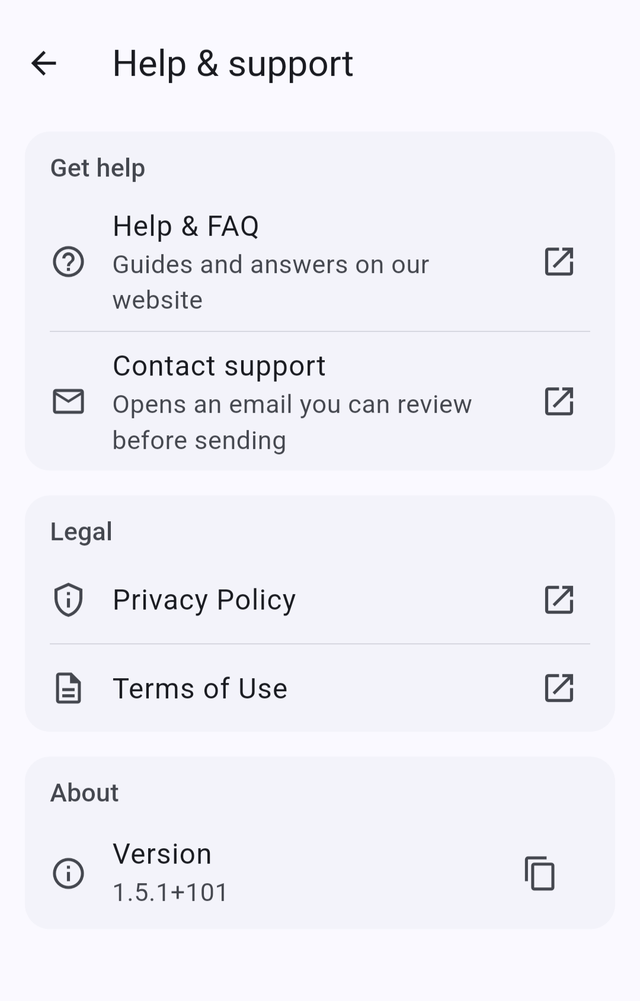
Go to Settings and open Help & support, then select Contact support. This opens an email to us with your app version, platform, device and app language already filled in, which you can review before sending. If you do not see Help & support, update the app or email us directly.
By email
Email support@lightofdata.earth. To help us sort out the problem quickly, please include:
- App version: shown at the bottom of Settings
- Platform: iOS or Android, and its version
- Device: the make and model of your phone
- What happened: what you were doing, what you expected, and what happened instead — screenshots help
Please write from the email address you use to sign in to Time Tracker, so we can find your account. Never send us your password.
Frequently Asked Questions
Subscriptions
How do I manage or cancel my subscription?
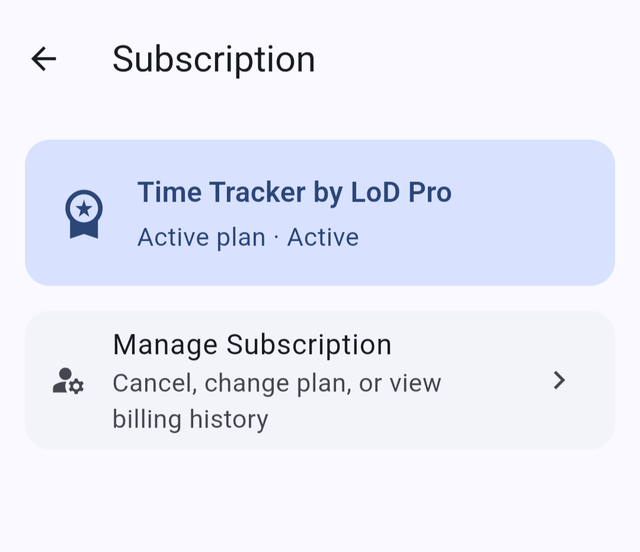
Time Tracker Pro is billed by Apple or Google, not by us. As a Pro subscriber you can open Settings > Account > Subscription and select Manage Subscription, or cancel directly in your store account:
- iOS: Go to Settings > [Your Name] > Subscriptions in the Apple App Store
- Android: Go to the Google Play Store > Account > Payments & subscriptions
Cancellation takes effect at the end of the current billing period — you retain access to Pro features until that date. We are unable to process cancellations directly. Deleting your Time Tracker account does not cancel a subscription, so cancel it first.
Can I get a refund?
All purchases are processed by Apple (App Store) or Google (Google Play). Refund requests are subject to their respective refund policies. We do not issue refunds directly. If you believe you are entitled to a refund, please contact Apple Support or Google Play Support.
Restoring Purchases
I bought Pro, but the app does not show it on my new device
Sign in with the same Time Tracker account you used when you subscribed. If Pro still does not appear, go to Settings > Account > Subscription and select Restore Purchases. Make sure the device is signed in to the same Apple ID or Google account that made the purchase. If restoring fails, email us with the details listed above.
Google Calendar
How do I connect Google Calendar?
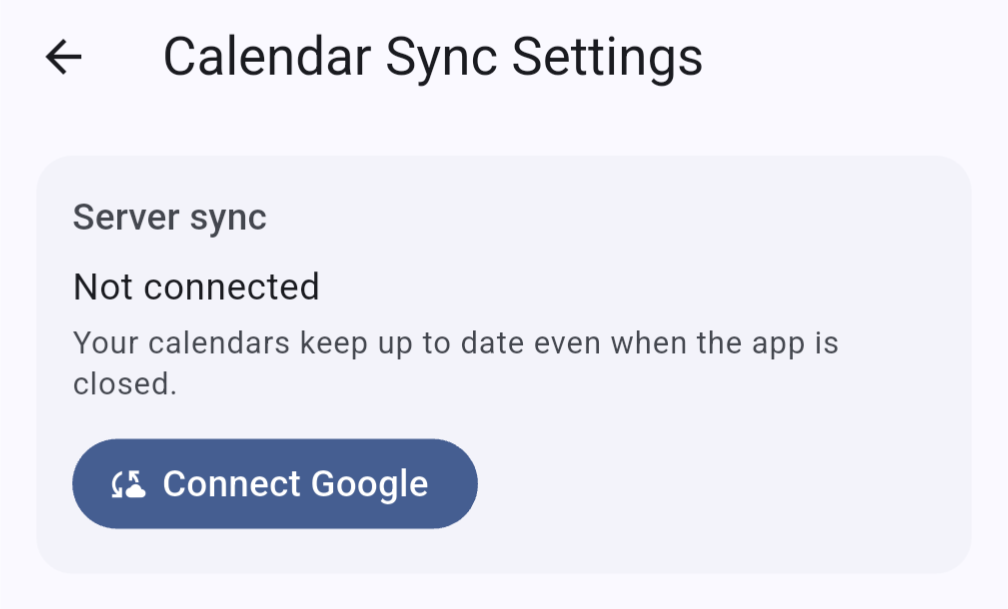
Calendar sync is a Pro feature. Go to Settings > Integrations > Calendar Sync and select Connect Google, then choose your Google account and allow access. Each client gets its own calendar in Google, and finished time entries appear in it within a minute or two, even when the app is closed. To leave a client out, open it and untick Sync to Google Calendar. You can also delete its calendar in Google at the same time.
Sync is one way: your time entries are added to Google Calendar, but changes you make in Google Calendar are not copied back into the app. If you delete a client's calendar in Google, the app turns off sync for that client. Tick it again to create a new calendar.
How do I disconnect Google Calendar?
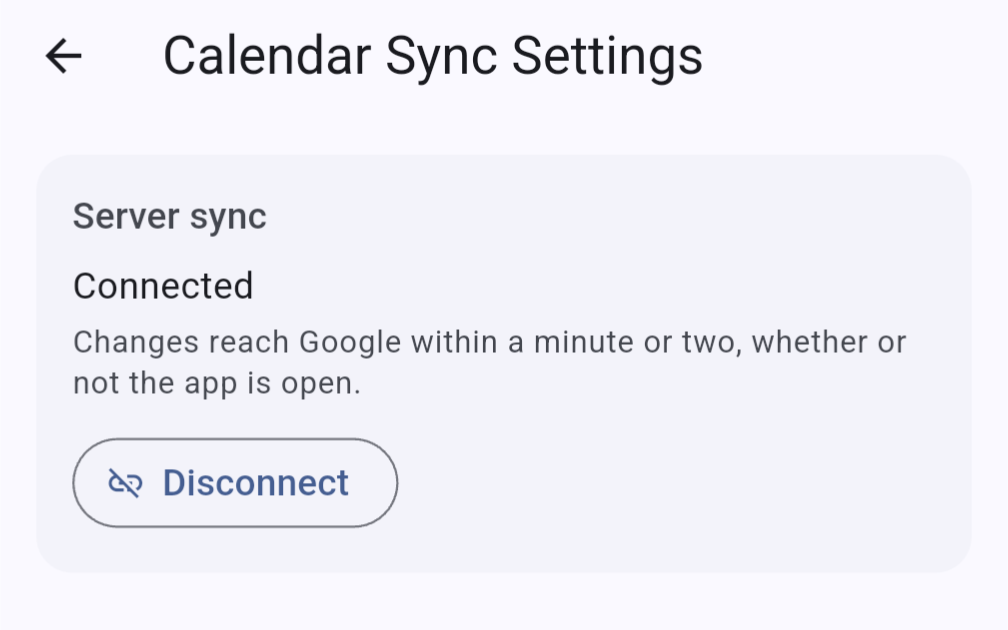
On the same screen, select Disconnect. Calendars and events already written stay in Google. You can also remove Time Tracker's access from your Google Account permissions.
Exporting Reports
How do I export my timesheet?
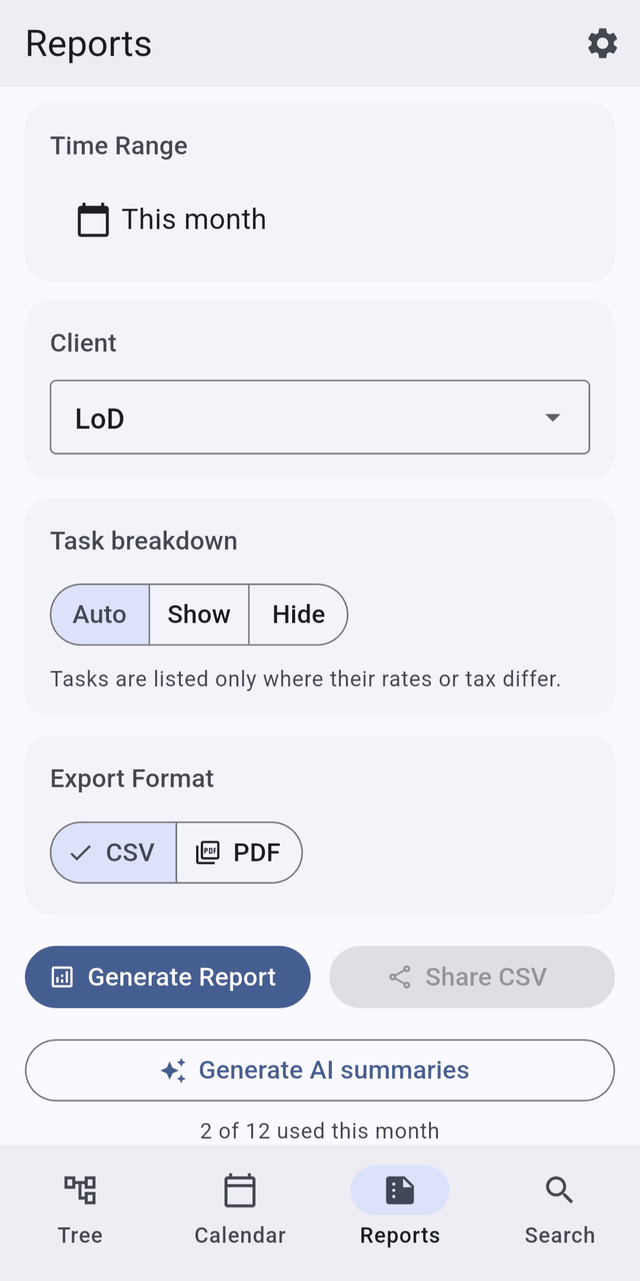
Open the Reports tab, choose a time range and a client, pick CSV or PDF under Export Format and select Generate Report. Then use Share CSV or Share PDF to save or send the file from your device.
This is a timesheet report export, not a complete export of your account: it does not include your client and project records, app settings or calendar sync settings. See Delete Your Account and Data for what the export covers, or contact us if you need data it does not include.
Your Account
How do I delete my account or my data?
See Delete Your Account and Data for the steps, what is deleted and what is kept.